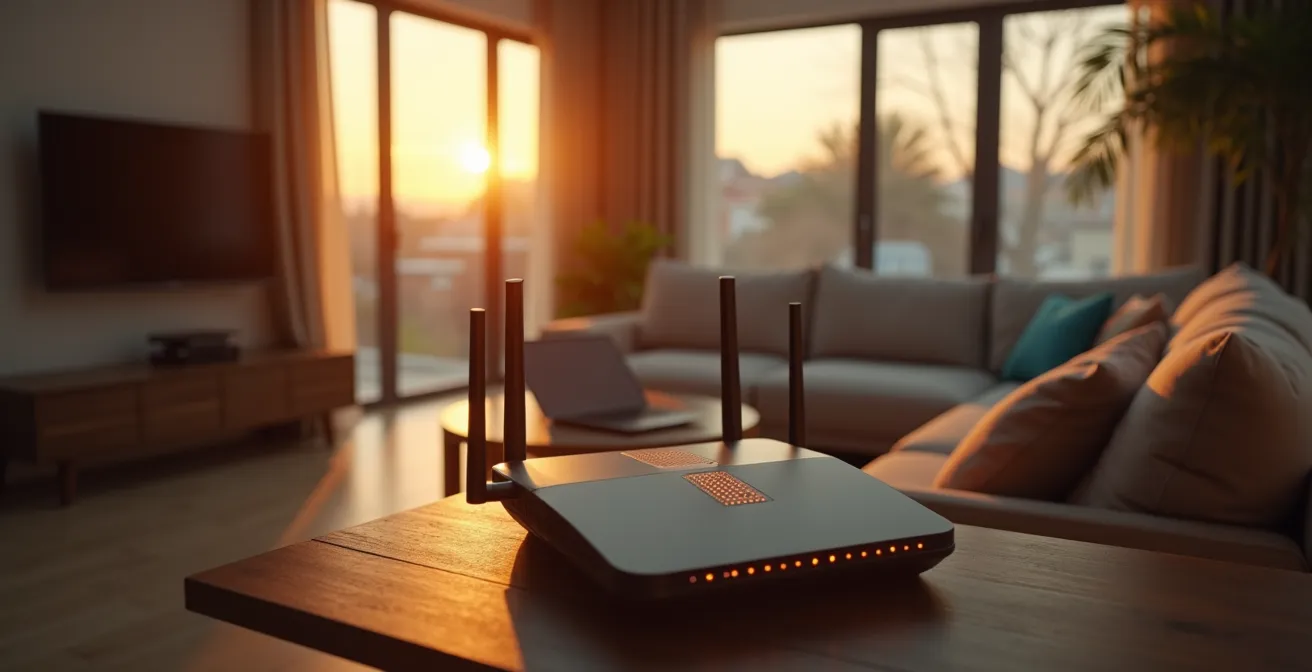
Locking down your Wi-Fi isn’t about a single strong password; it’s about treating your own smart devices as the biggest security risk.
- The most common entry points for hackers are default router passwords and outdated firmware on devices you already own.
- True security comes from isolating insecure devices (like smart TVs and cameras) on a separate “guest” network so they can’t access your sensitive data.
Recommendation: Adopt a ‘Zero-Trust’ mindset: trust no device by default and segment your network to protect your family’s computers and phones from your own vulnerable gadgets.
In the modern home, a quiet hum of digital activity never ceases. Your smart TV, baby monitor, thermostat, and a dozen other devices are constantly connected, blinking with quiet assurance. But this convenience comes with a nagging question: Is your digital life truly private? You worry about neighborhood hackers or shadowy figures trying to break in. It’s a valid fear, one that keeps many families on edge about their online privacy.
The standard advice is familiar: use a strong password, enable WPA3 encryption, and maybe hide your network name. While these are good first steps, they are like locking the front door while leaving all the windows wide open. From my perspective as an ethical hacker, the greatest threat isn’t always the external attacker trying to breach your perimeter. More often, the danger is already inside your walls, invited in by you. It’s the cheap smart plug or the unpatched security camera that becomes a trojan horse, giving an attacker a foothold inside your trusted network.
This guide will shift your perspective. Instead of just building a higher wall, you will learn to think like a hacker and adopt a “Zero-Trust” mindset for your home. The real key to security isn’t a single, impenetrable fortress; it’s about smart segmentation. It’s about assuming every device could be a potential threat and isolating them to protect what truly matters: your family’s personal data, financial information, and privacy. We’ll move from basic digital hygiene to advanced network isolation, empowering you to take definitive control over your digital home.
To navigate this new security mindset, this article is structured to build your expertise step-by-step. We will cover the most common vulnerabilities, the core strategies for network isolation, the hardware that can help, and the real-world consequences of inaction, giving you a complete action plan to secure your family’s digital life.
Summary: A Hacker’s Guide to Protecting Your Family
- Why Leaving Your Router Password as ‘Admin’ Is Dangerous?
- The Firmware Mistake That Leaves Cameras Open to the Web
- How to Set Up a Guest Network to Isolate Insecure Devices?
- ISP Router vs Mesh System: Which Offers Better Firewalls?
- When to Change Passwords: A Quarterly Hygiene Schedule
- The Phishing Trap Targeting Seniors That Costs Thousands
- Why Losing Client Data Could Cost You Your Business License?
- How to Limit What Social Media Platforms Know About You?
Why Leaving Your Router Password as ‘Admin’ Is Dangerous?
Leaving your router’s administrative password as “admin” or “password” is the digital equivalent of leaving your front door key under the mat. It’s the first thing any attacker—from a bored neighborhood kid to an automated script—will try. This isn’t a secret; lists of default credentials for hundreds of router models are readily available online. Shockingly, a staggering 86% of users have never changed their router admin password, creating a massive, collective vulnerability. Once an attacker has administrative access, they don’t just get on your Wi-Fi; they own your network. They can change your Wi-Fi password, spy on your traffic, redirect you to malicious websites, and use your network to launch attacks on others.
Changing this password is your first, non-negotiable act of digital hygiene. It’s the master key to your entire home network. Without securing it, every other security measure is fundamentally undermined. This simple action moves you from being an easy, default target to a much harder one, forcing an attacker to expend significantly more effort. Think of it as the foundation upon which all other security principles are built. A strong, unique administrator password ensures that you are the only one in control of your network’s rules and configuration.
The Firmware Mistake That Leaves Cameras Open to the Web
You bought that new smart camera for peace of mind, but an old, unpatched piece of software could be turning it into a window for the world to peer through. This is the risk of outdated firmware. Firmware is the low-level operating system that runs your router, cameras, and other smart devices. When manufacturers discover a security flaw, they release a firmware update to patch it. However, if you don’t install it, your device remains a sitting duck. This isn’t a rare oversight; a security survey reveals that 84% of internet users have never updated their router firmware. This leaves a backdoor wide open for attackers to exploit known vulnerabilities.
For a device like a security camera or baby monitor, the consequences are terrifyingly direct. An attacker can exploit a firmware flaw to gain access to the live video feed, watch and listen to your family, or even move the camera. Beyond espionage, they can use the compromised camera as a pivot point to attack other devices on your network, like your laptop or phone. Enabling automatic firmware updates, if the option exists, is critical. If not, you must make it a part of your regular digital hygiene to manually check for and install updates from the manufacturer’s website. An updated device is a hardened device; a neglected one is an open invitation to intruders.

This macro view highlights the physical complexity of security hardware, but its true strength lies in the invisible layer of updated firmware. Without it, even the most robust-looking device is fragile.
How to Set Up a Guest Network to Isolate Insecure Devices?
The single most powerful strategy you can adopt is not about blocking threats, but containing them. This is the essence of network segmentation, and the easiest way to achieve it at home is by properly using a guest network. A guest network is a separate access point with its own name and password that provides internet access but is isolated from your main, trusted network. The mistake most families make is thinking this is only for visitors. Its real power lies in using it to quarantine your own untrustworthy devices. Every smart plug, smart TV, gaming console, and IoT gadget should be on this network. This is the practical application of a Zero-Trust mindset: you grant these devices internet access, but you don’t trust them with access to your personal files.
The CISA recommends this exact approach. In their guidance, they highlight that connecting IoT devices to a guest Wi-Fi prevents them from discovering other devices on your home network, accessing your router’s settings, or introducing vulnerabilities that could compromise your sensitive data. If a hacker compromises your smart TV via a firmware flaw, their attack stops there. They can’t see your laptop containing your banking information or the family photos on your network drive because they are on entirely different digital islands.

As this visual metaphor shows, segmentation works by placing different categories of devices in their own secure containers. A breach in one container, such as your entertainment devices, does not spill over and compromise your personal or work data. Setting up a guest network is a simple process in most modern router settings, usually involving just enabling the feature and setting a strong, unique password for it.
ISP Router vs Mesh System: Which Offers Better Firewalls?
The router your Internet Service Provider (ISP) gives you is often designed for basic connectivity, not robust security. While it has a firewall, it’s typically a simple one that can’t keep up with modern threats. For families with dozens of connected devices, upgrading to a modern mesh Wi-Fi system is a significant security enhancement. Mesh systems are not just about eliminating dead zones; they are built with a security-first architecture that is far superior to most ISP-provided hardware. They offer more advanced firewalls, automatic updates, and, crucially, better tools for network segmentation.
Modern WiFi 7 mesh systems, for example, often come with Next-Generation Firewalls (NGFW) that perform deep packet inspection, actively scanning traffic for malicious content, not just blocking ports. They are designed to support the Zero-Trust model, allowing you to easily create multiple separate networks (VLANs)—one for your trusted computers, one for your IoT gadgets, and another for guests. This granular control is rarely available on standard ISP routers. The difference in security features is stark, as this comparison shows.
This table compares the typical security features of a standard router provided by an Internet Service Provider (ISP) against those of a modern Mesh System, as detailed in a comparative analysis by NETGEAR.
| Security Feature | ISP Router | Mesh System (WiFi 7) |
|---|---|---|
| Encryption Standard | Often WPA2 only | WPA3 standard |
| Firmware Updates | Rarely updated, manual process | Automatic seamless updates |
| Firewall Type | Basic SPI firewall | NGFW with Deep Packet Inspection |
| Threat Detection | None or minimal | Real-time threat monitoring |
| Network Segmentation | Limited guest network | Multiple VLANs for IoT, guest, work |
| Security Services | None | Built-in antivirus, intrusion prevention |
When to Change Passwords: A Quarterly Hygiene Schedule
The old wisdom of forcing password changes every 90 days is now considered obsolete by many security experts. This practice often leads to users creating weaker, predictable passwords (e.g., “Summer2024!”, “Fall2024!”) just to meet the requirement. A more modern and secure approach has emerged, which you should adopt for your Wi-Fi password. As CISA security guidelines state, the new best practice is to create a “very long, unique passphrase changed only in case of a suspected breach.”
To make your Wi-Fi password both secure and accessible, try creating a memorable passphrase using 5 to 7 unrelated words totaling at least 16 characters.
– CISA Security Guidelines, CISA Module 5: Securing Your Home Wi-Fi
Instead of a frequent change schedule, focus on a quarterly audit schedule. This is a proactive check-up to ensure your defenses are still robust, rather than a reactive password change. This regular hygiene routine is where you verify that your security posture hasn’t degraded over time. It’s a quick but essential process to maintain the integrity of your network.
Your Quarterly Network Security Audit
- Points of contact: List all devices connected to your main and guest networks. Go to your router’s admin panel and review the connected client list. Disconnect and investigate any device you don’t recognize immediately.
- Collecte: Inventory your key security settings. Check that your Wi-Fi encryption is still set to WPA3 or WPA2-AES and that your router’s administrator password has not been reset to default after a firmware update.
- Cohérence: Confront your setup with your security goals. Test your guest network isolation by trying to access a computer on your main network from a phone connected to the guest Wi-Fi. The connection should fail.
- Mémorabilité/émotion: Review your Wi-Fi passphrase. Is it still a strong, long, and unique phrase of unrelated words, or has a weaker, more convenient password crept in for a specific device?
- Plan d’intégration: Check the manufacturer’s website for firmware updates for your router and key IoT devices (cameras, smart hubs). Prioritize installing any available security patches.
The Phishing Trap Targeting Seniors That Costs Thousands
One of the most insidious threats doesn’t involve guessing passwords at all. It preys on trust and turns your own router against you, a particularly dangerous trap for less tech-savvy family members like seniors. This attack is called DNS hijacking. If an attacker gains administrative access to your router (often through a default password), they can silently change your DNS settings. DNS, or Domain Name System, is the internet’s phonebook; it translates human-friendly website names (like yourbank.com) into computer-readable IP addresses.
When a hijacker controls your DNS, they can redirect you. Even if your parent or grandparent types the correct address for their banking website, the compromised router will send them to a pixel-perfect fake copy designed to steal their login credentials and empty their account. For the user, everything looks completely normal, making this attack nearly impossible to detect. A study by Comparitech found that 6.4% of popular home routers remain vulnerable to attacks that enable DNS hijacking. This shows how a single initial vulnerability—the weak router password—can be weaponized into a devastating financial fraud tool, all happening silently within your own home network.
Key takeaways
- Adopt a “Zero-Trust” Mindset: Do not automatically trust any device on your network, especially IoT gadgets. Assume any could be compromised.
- Practice Network Segmentation: Use a guest network to isolate all your smart devices (TVs, cameras, speakers) from your primary network where your computers and phones reside.
- Maintain Digital Hygiene: A security audit is not a one-time fix. Regularly update firmware, use long passphrases, and audit your connected devices quarterly.
Why Losing Client Data Could Cost You Your Business License?
In the age of remote work, the line between your home network and your professional life has blurred to the point of disappearing. If you or a family member works from home, a compromised home Wi-Fi is no longer just a personal risk; it’s a direct threat to your employer and a potential professional liability for you. Many corporate VPNs use a configuration called “split-tunneling,” where traffic to the company is encrypted, but all other internet traffic goes through your regular home connection. This means your work laptop is simultaneously connected to the secure corporate network and your potentially insecure home network.
An attacker who compromises your home router can use it as a beachhead. They can scan for vulnerabilities on the work laptop, intercept unencrypted data, or potentially pivot from the laptop into the corporate network. For professionals in regulated industries like healthcare (bound by HIPAA) or finance (bound by FINRA), this creates a direct liability. A breach that originates from your insecure home network could be traced back to you, leading to job loss, fines, or even the loss of a professional license. The stakes are immense, with the average cost of a data breach now at USD 4.88 million. Securing your home network is no longer just about protecting family photos; it’s about protecting your career.
How to Limit What Social Media Platforms Know About You?
Securing your network from intruders is one half of the battle; the other is preventing your personal data from leaking out to trackers and data brokers. Social media platforms, advertisers, and tech giants are constantly profiling your family’s online activity. They build detailed pictures of your interests, habits, and even your location by tracking the data that flows from every device in your home. Your secured router, however, can be turned into a powerful privacy tool to fight back.
By taking control at the network level, you can apply privacy protections to every device automatically. One powerful technique is to configure a privacy-focused DNS service (like NextDNS or AdGuard DNS) on your router. These services can automatically block known ad and tracker domains for every device on your network, effectively cutting off a major data collection channel. Another advanced step is to set up a VPN directly on your router. As Norton Security experts explain, a VPN encrypts all your internet traffic and hides your location, preventing trackers from monitoring your activities.
Disabling SSID broadcasting (hiding your network name) can also add a small layer of privacy by preventing your network from showing up in casual scans used for location tracking. By combining these router-level controls, you move from device-by-device privacy settings to a network-wide shield. You’re not just locking the doors; you’re drawing the blinds, limiting what even legitimate platforms can learn about you.
Don’t be a passive victim. Take control of your digital home today. Start by performing a security audit of your router settings now, implement network segmentation, and build your defense, one device at a time.